Sharing Printer from Ubuntu to Mac OS X
Quite often we read about how small things are so much more complicated on Linux than on Windows. I set out on a journey today to add a printer via USB to my Ubuntu desktop and share it out to my MacBook at my new apartment. If there's one thing in this sick, twisted world that I hate, it's printers.
Given that background, I was shocked at just how easy it was to setup the printer, share it out, and connect to the shared printer using my Macs and other Linux machines on my home network. The printer that I worked with was just a cheap inkjet - an HP Deskjet D2330. I had a heck of a time with the driver for OS X directly connected, so I wasn't expecting much. I plugged in the USB cable and voila, my Ubuntu desktop popped up a message that the printer was ready to rock. I opened up OpenOffice.org and printed out a doc just to make sure my desktop wasn't just playing with my heartstrings. Sure enough, it printed my doc just fine.
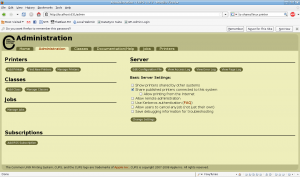
Now, on to sharing. Doing a little poking around in the GUI, I found the printer configuration at System -> Administration -> Printing. Under the policies, the "Shared" check box was checked, so I popped open the System Preferences on my MacBook and tried to add a printer. I couldn't find the printer in any of the discovered list. A quick Google search reminded me that the CUPS configuration web GUI could be found at: http://localhost:631 when CUPS was installed and running. I navigated to the page and found the check box called "Share published printers connected to this system". I checked it and clicked "Change Settings". When prompted to authenticate, I used my desktop login username and password.
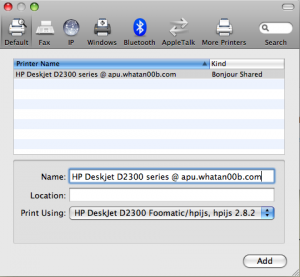
When I flipped over to my MacBook, I opened up System Preferences again, added a printer and there my printer was. I clicked add and it was ready to go within moments.
After my successes on my MacBook, I decided to press my luck just a bit more by adding my Linux laptop as well. On my laptop, I run Xubuntu 9.04 and it was almost as easy to setup. I just opened the printer configuration window via Applications -> System -> Printing and clicked on the new printer button. The Xubuntu machine scanned for printers on the network, discovered my printer and added it. I can't say I've had nearly that smooth of an experience adding any sort of printer to Windows.
Comments
Comments powered by Disqus